Frequently Asked Questions


How do I login?
Cooper Connect utilizes Microsoft for all user authentication processes, ensuring that user passwords are not stored on our systems.
If your organization already uses Microsoft services for authentication, you can log in seamlessly using your corporate username and password credentials. For all other users, Microsoft will provide access by emailing you a secure, single-use access code.
Follow the step-by-step tutorials below
How to authorize web browser pop-ups
- Go to the top right corner of the search address bar in your web browser, click “Pop-up blocked”.
- To login and always have documents pop-ups for the site, select Always allow pop-ups and redirects from [website URL].
- Click “Done”.
Login with Microsoft Authentication
1. Click “Cooper Customers”
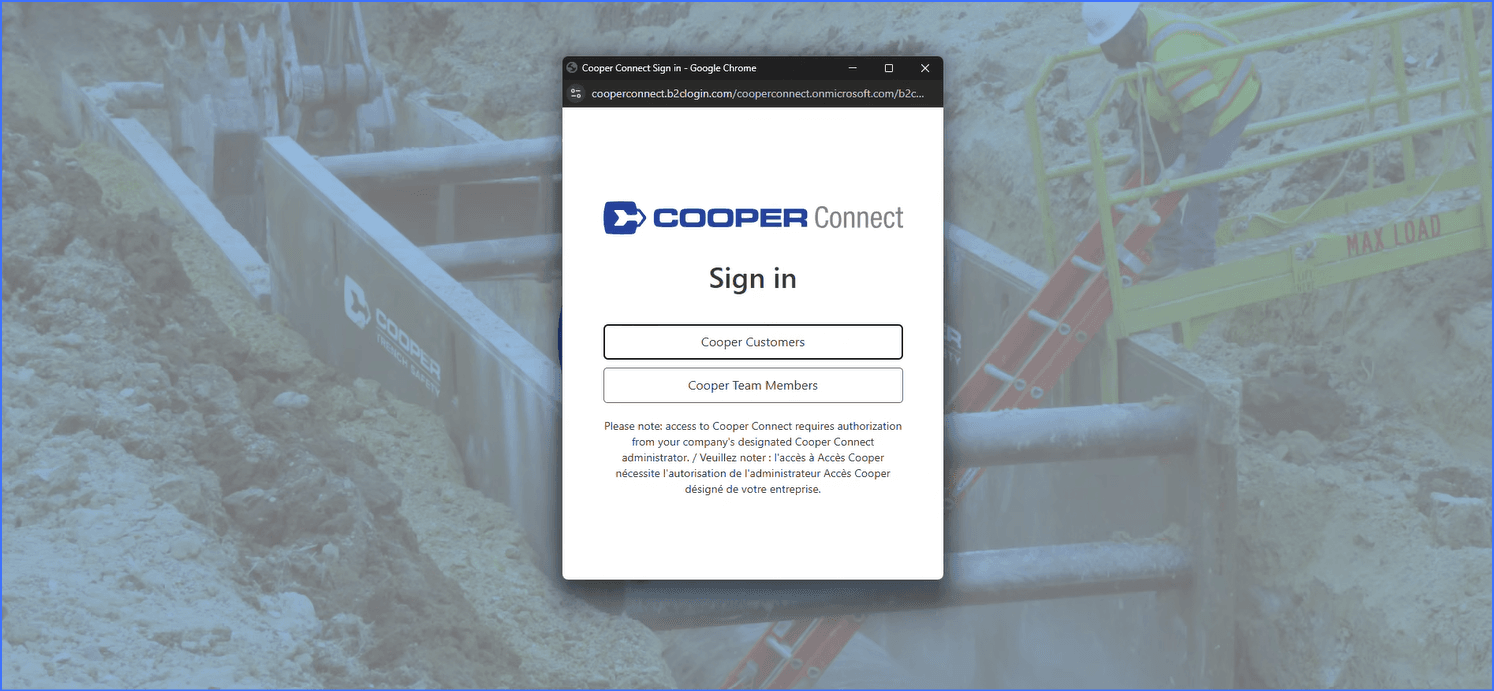
2. Select your Microsoft Work Account
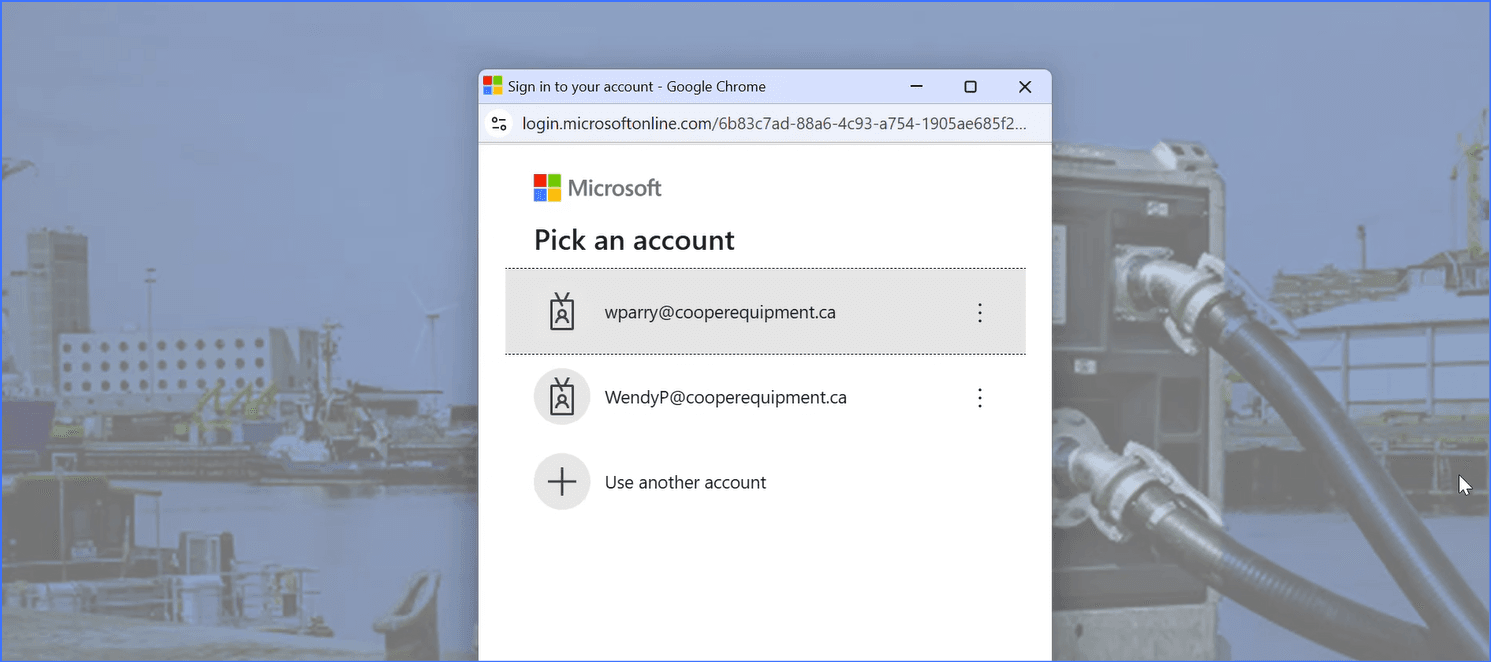
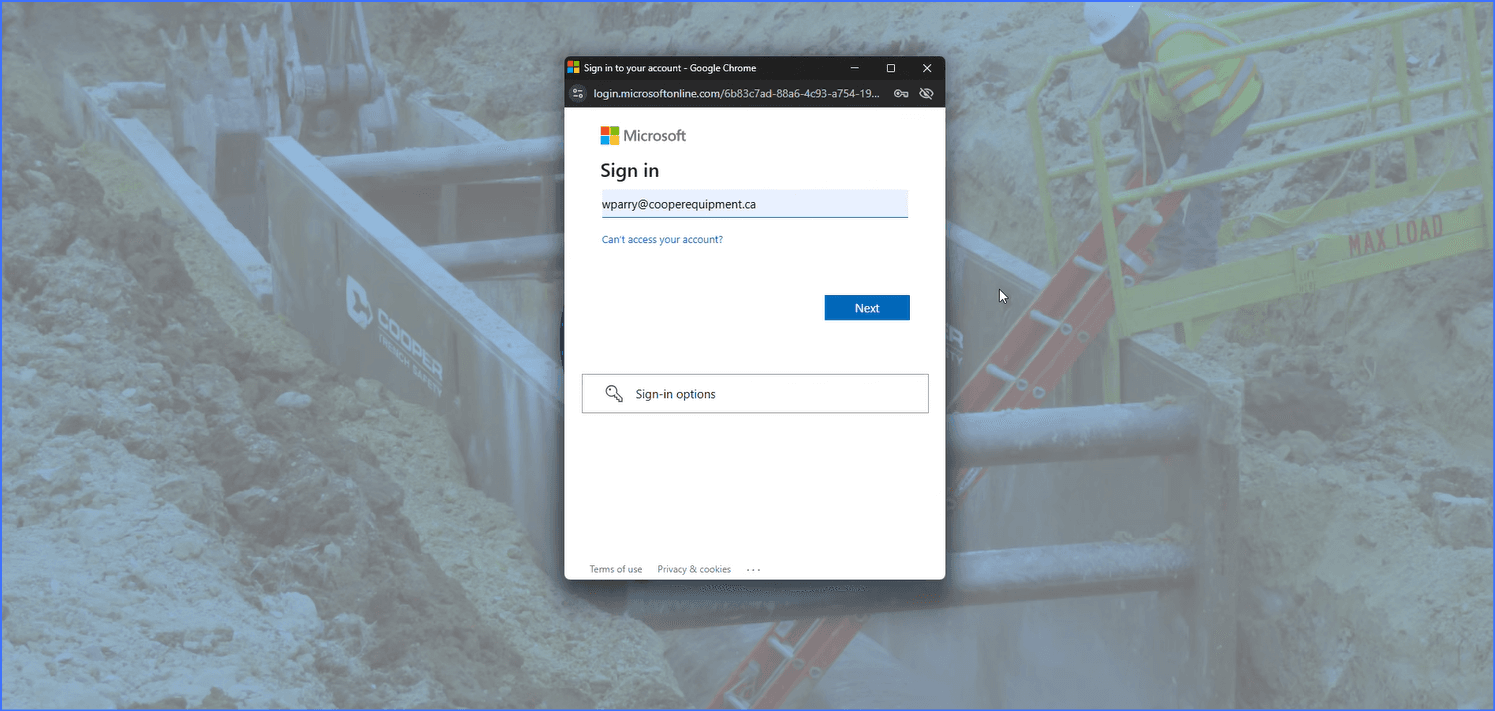
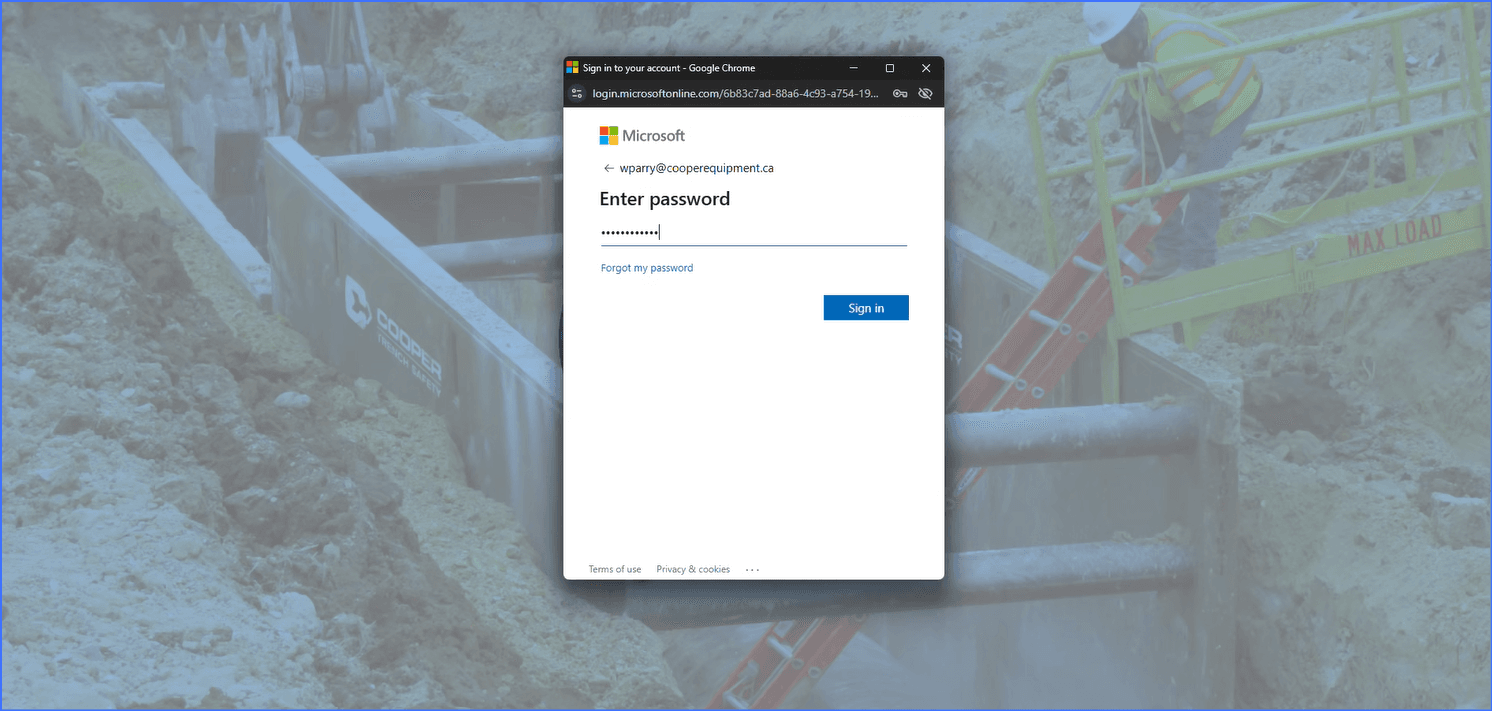
3. Enter your company’s password credentials
4. Click “Accept”
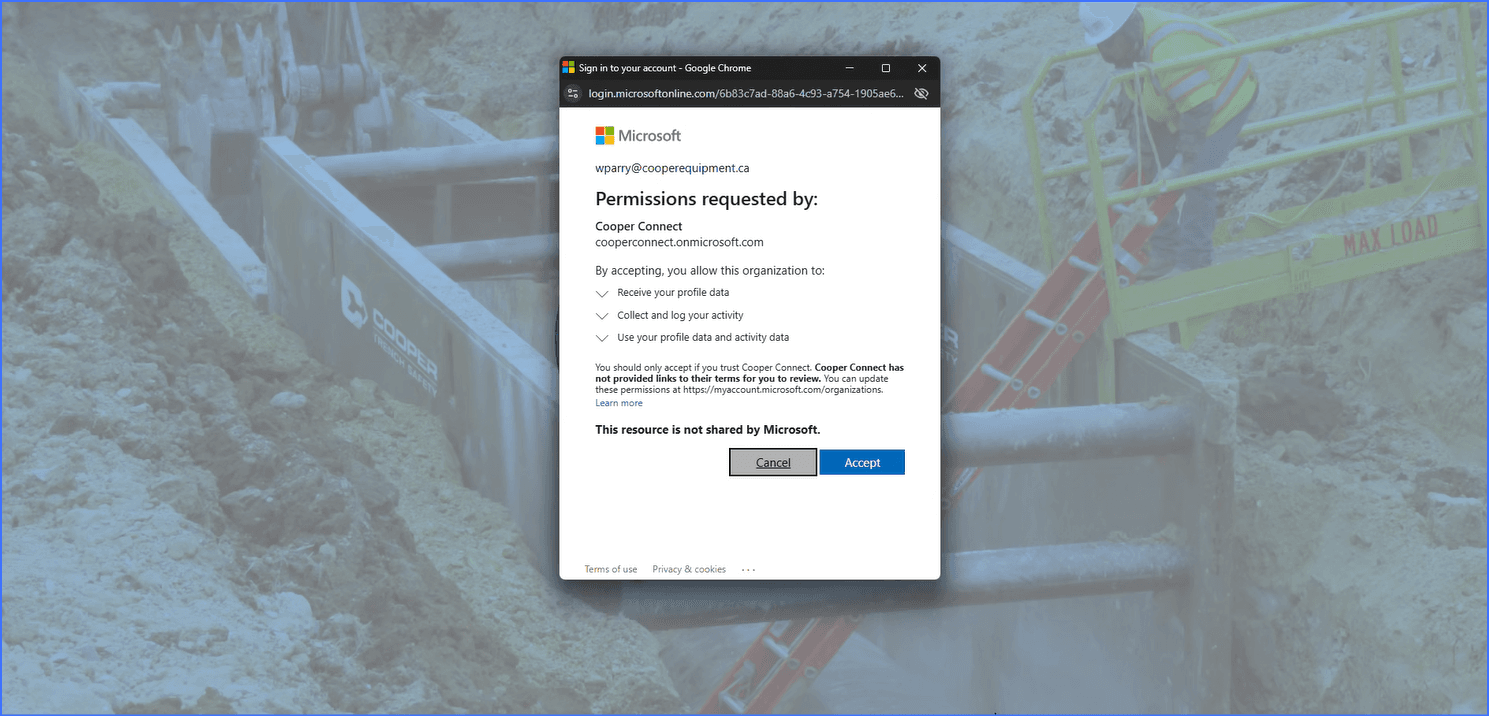
5. Select “Yes” if you would like to stay signed in
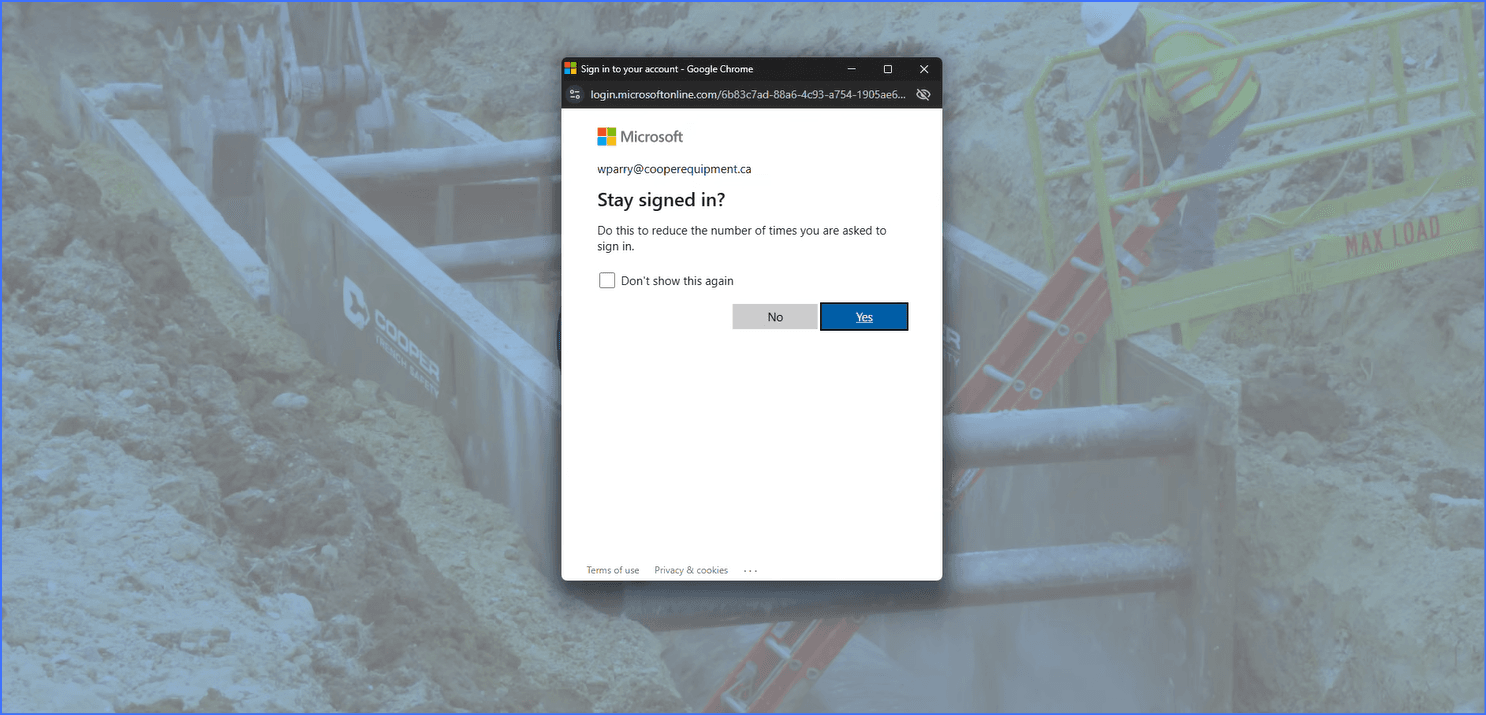
Login with Single-Use Access Code
1. Select “Cooper Customers”
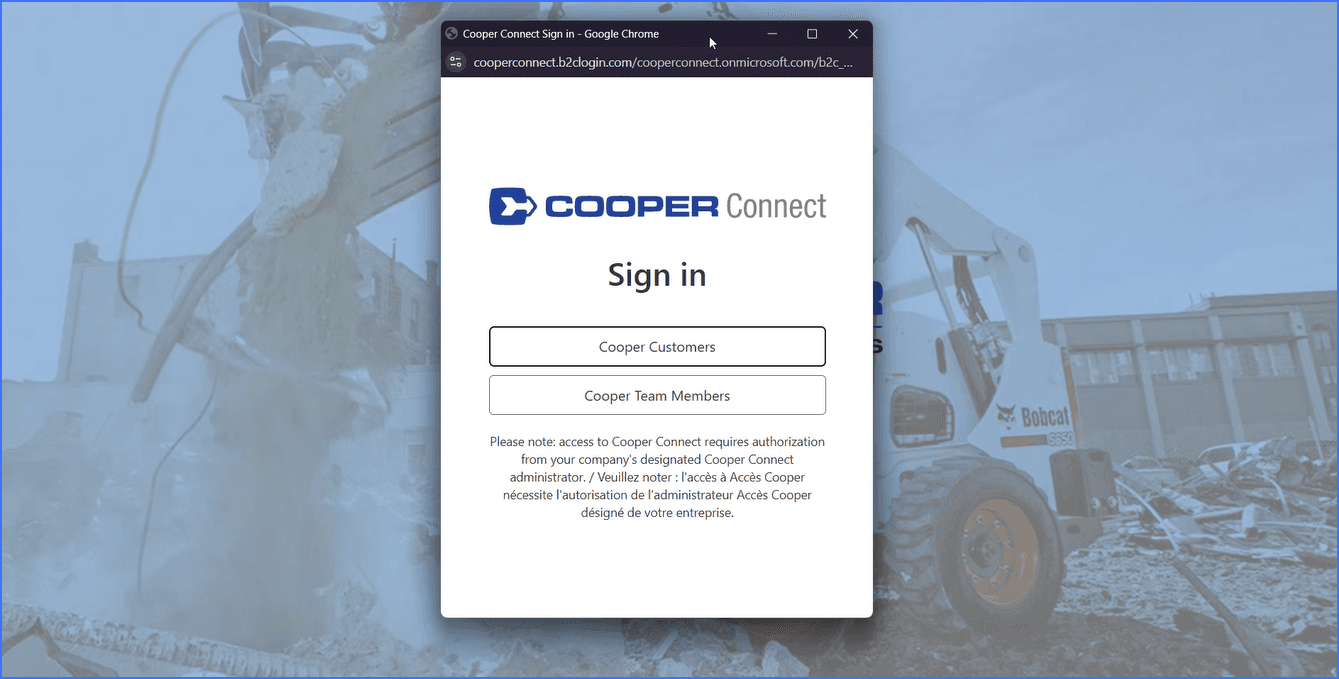
2. Enter your work email address
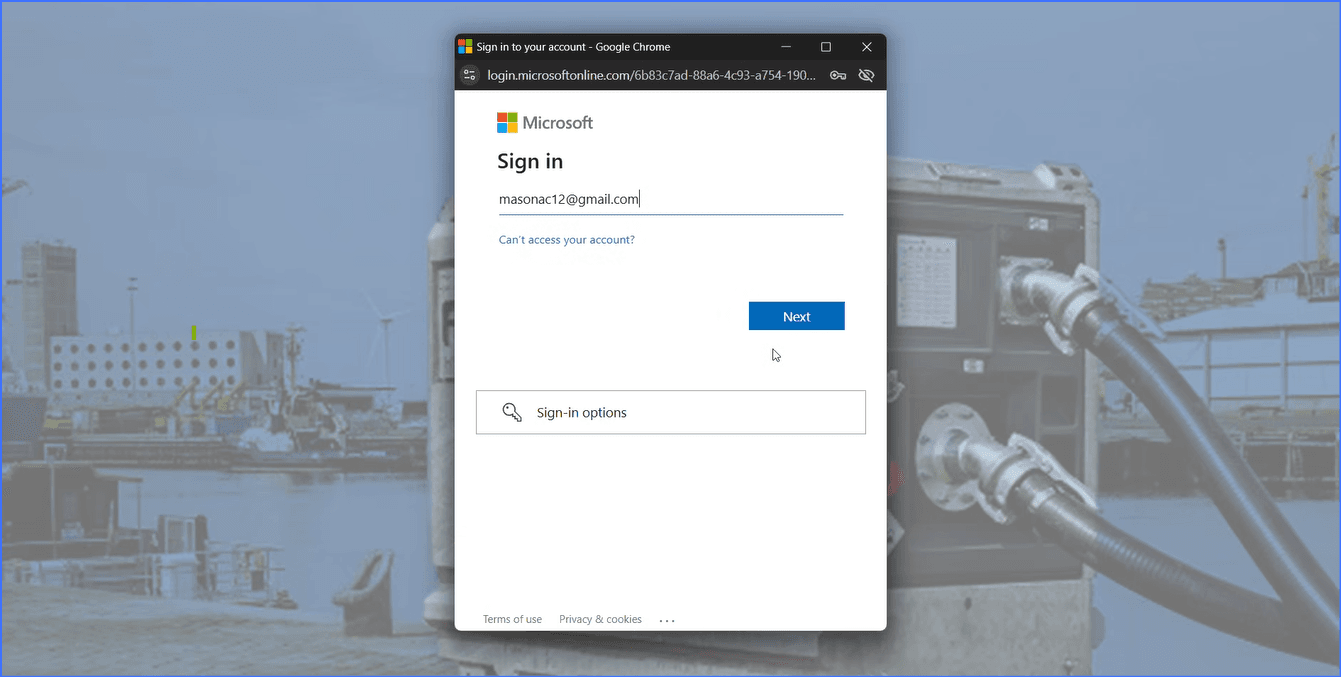
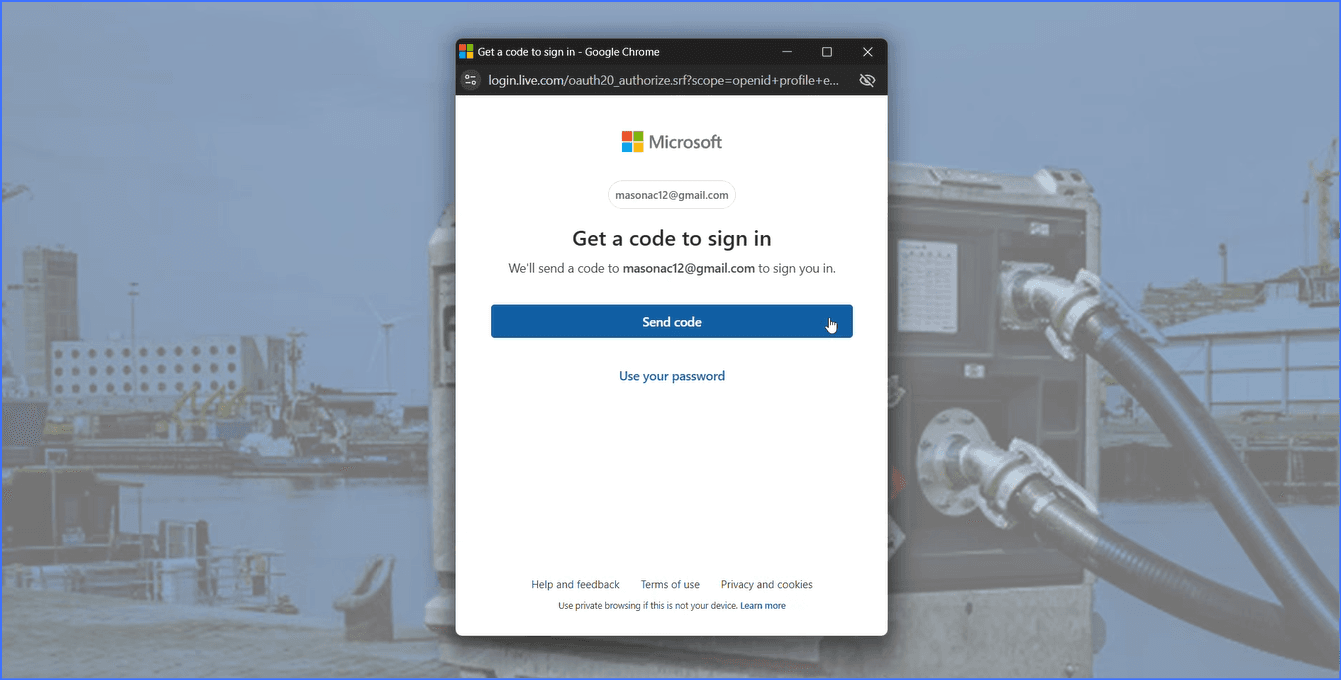
3. Microsoft will prompt you to send a single-use sign-on code to your email. Select “Send code”.
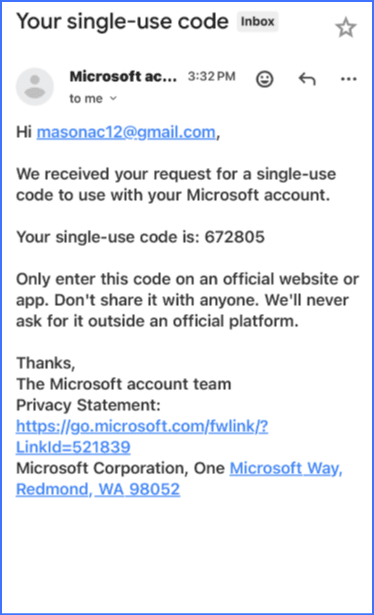
4. See example of the single-use code Microsoft will email you.
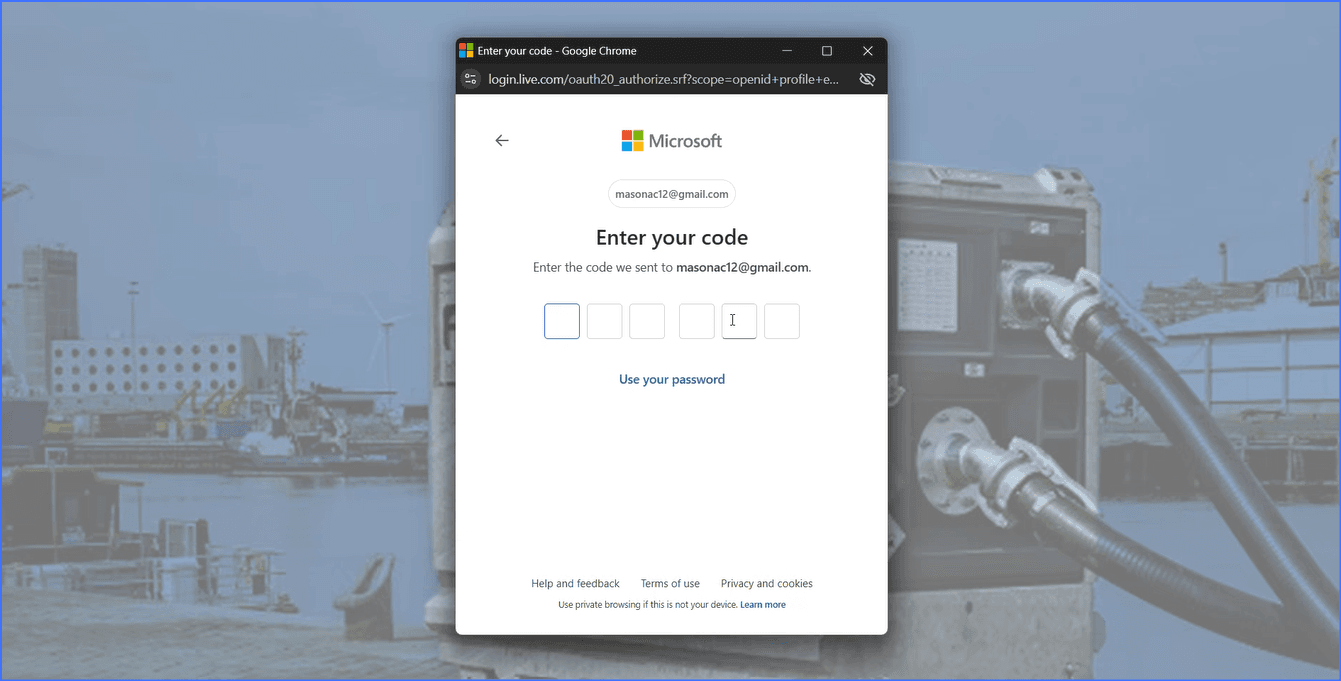
5. Enter the code from the email you received.
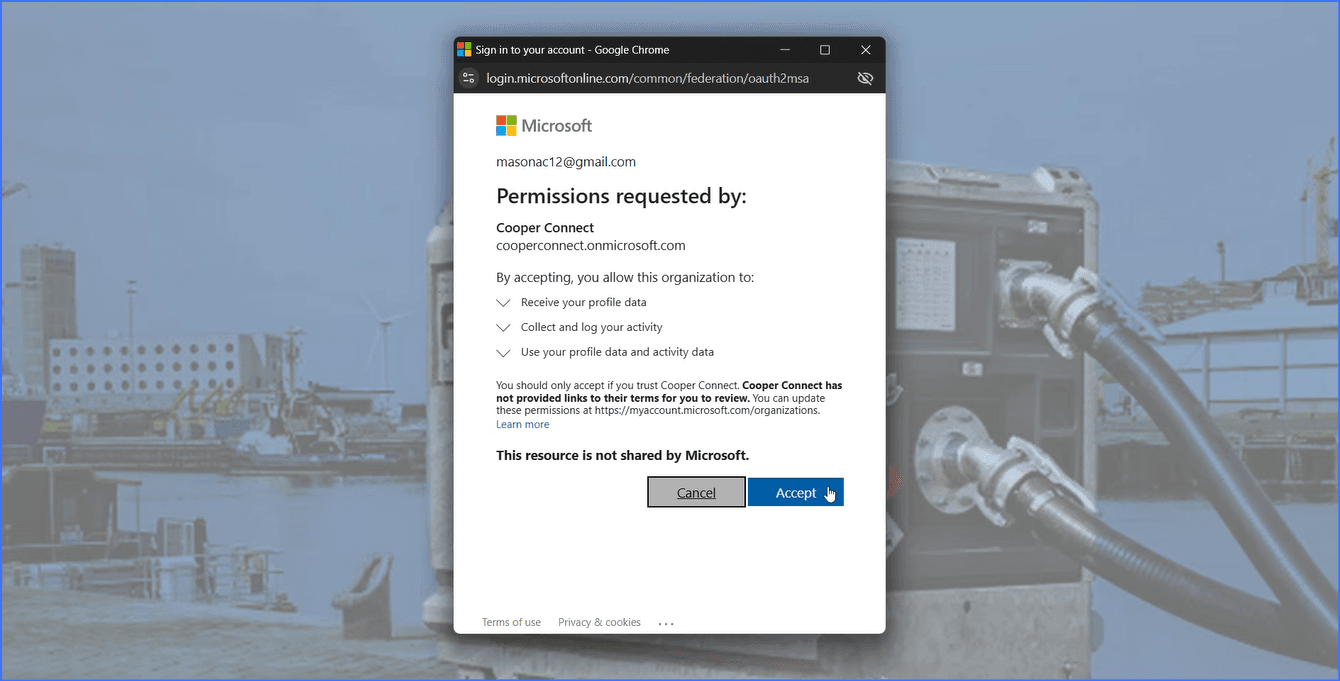
6. Click “Accept”
7. You will then be brought to the “Cooper Connect” home screen
Can I pay invoices online?
How do I pay invoices online?
My credit card has expired. How do I update it?
How do I check if a credit card is saved on my account?
How do I view my rental history?
What capabilities does an Administrator have?
Can there be multiple Administrators?
Administrators: Learn how to register new users.
How do administrators set up user-specific access to reports?
Can a user have access to multiple accounts?
How to create and bookmark an invoice report.
Can I schedule email notifications for reports?
Not receiving report email notifications? Here’s how to fix it.
Is there a mobile app?
Who can register?
How do I register?
Is there a contact for support?